FFHub vs Transloadit — A Developer's Comparison
Comparing FFHub and Transloadit for cloud media processing. Covers API design, pricing models, FFmpeg support, learning curve, and best use cases.
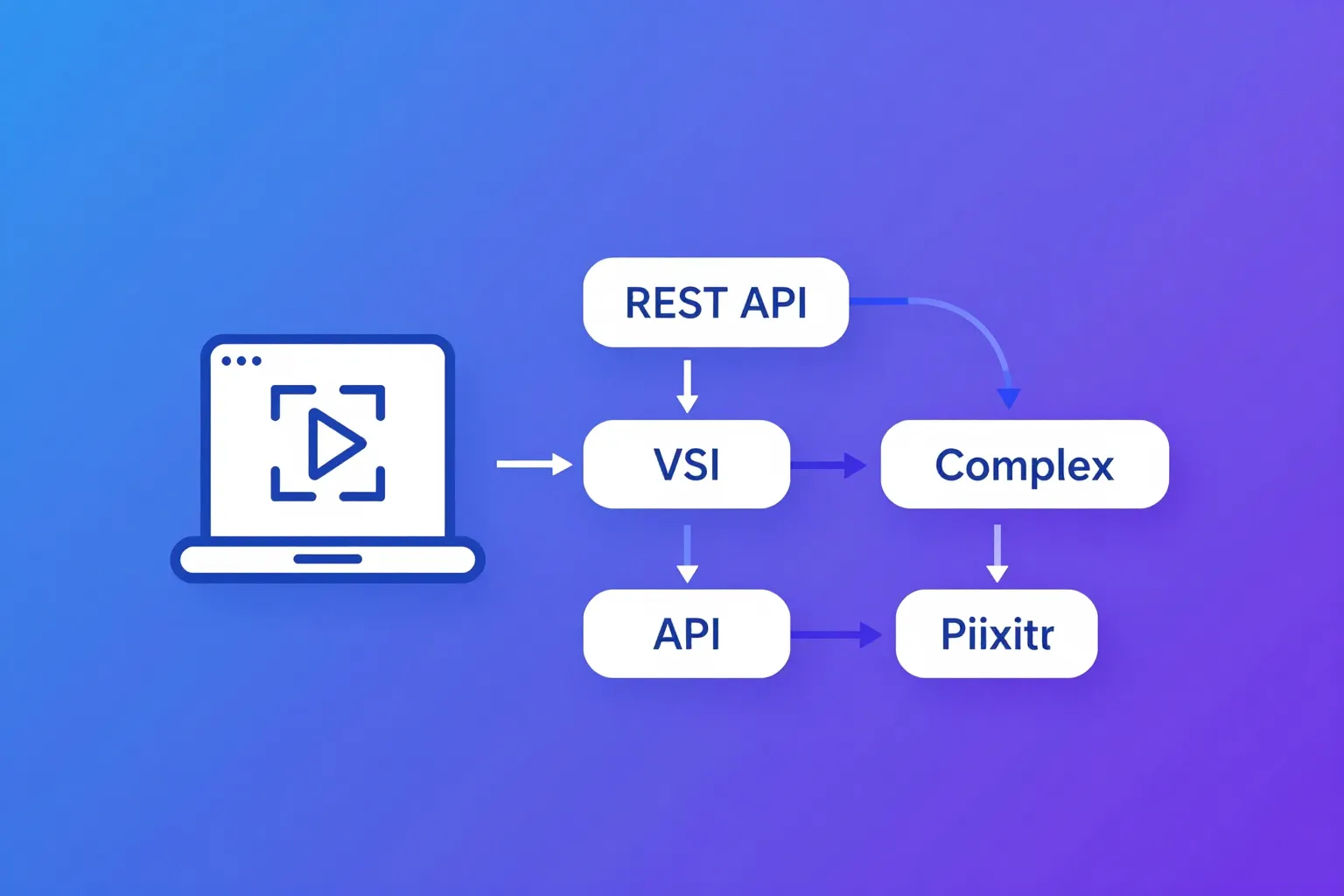
Transloadit and FFHub both process media in the cloud, but their approaches couldn't be more different. Transloadit is a full-featured file processing platform with its own Assembly language and Robot system. FFHub is a focused cloud FFmpeg API where you send FFmpeg commands and get results. This comparison breaks down the key differences to help you choose.
Quick Overview
Transloadit is a media processing platform built around the concept of "Assemblies" and "Robots." You define processing pipelines using a JSON-based DSL (domain-specific language), where each step is handled by a specialized Robot — one for video encoding, another for image resizing, another for file importing, etc.
FFHub is a cloud FFmpeg API. You send a standard FFmpeg command via REST API, FFHub executes it, and you get the result. One concept, one endpoint.
Comparison Table
| Feature | FFHub | Transloadit |
|---|---|---|
| API model | REST API — send FFmpeg command | Assembly DSL with Robots |
| Processing scope | Video/audio (FFmpeg) | Video, audio, images, documents |
| FFmpeg compatibility | 100% | Partial — exposed through Robot parameters |
| Learning curve | Know FFmpeg = know FFHub | Learn Assembly syntax + Robot catalog |
| Pricing model | Per-second processing time | Per-GB of output + monthly plans |
| File upload widget | No | Yes — Uppy (open source) |
| Input sources | URL, local file upload | URL, S3, GCS, Azure, direct upload |
| Image processing | Via FFmpeg (limited) | Full-featured (ImageMagick-based) |
| Document processing | No | Yes (PDF, Office docs) |
| Pipeline orchestration | Sequential FFmpeg commands | Assembly steps with dependencies |
| Webhook | Yes | Yes (notify Robot) |
| Client libraries | Node.js, Python, CLI | Node.js, Ruby, Python, PHP, Java, Go |
| Vendor lock-in | None — standard FFmpeg | High — proprietary Assembly DSL |
API Design: FFmpeg Command vs Assembly DSL
This is the fundamental difference between the two services.
FFHub: One Command
curl -X POST https://api.ffhub.io/v1/tasks \
  -H "Authorization: Bearer YOUR_API_KEY" \
  -H "Content-Type: application/json" \
  -d '{
    "command": "ffmpeg -i https://example.com/input.mp4 -c:v libx264 -crf 23 -vf scale=1280:720 -c:a aac -b:a 128k output.mp4"
  }'
If you've used FFmpeg before, you can read this immediately. The command is the same as what you'd run on your local machine.
Transloadit: Assembly with Robots
{
  "steps": {
    "imported": {
      ":robot": "/http/import",
      "url": "https://example.com/input.mp4"
    },
    "encoded": {
      ":robot": "/video/encode",
      "use": "imported",
      "preset": "iphone-high",
      "width": 1280,
      "height": 720,
      "ffmpeg_stack": "v6.0.0",
      "ffmpeg": {
        "crf": 23,
        "b:a": "128k"
      }
    },
    "exported": {
      ":robot": "/s3/store",
      "use": "encoded",
      "bucket": "my-bucket",
      "key": "output/${file.id}.mp4",
      "credentials": "my_aws_creds"
    }
  }
}
Transloadit's Assembly syntax is more verbose but structured. Each "step" uses a "Robot" that performs a specific action. Robots are chained together with the use keyword.
The Learning Curve
With FFHub, the learning curve is essentially zero if you know FFmpeg. You write the same command you'd run locally.
With Transloadit, you need to learn:
- The Assembly JSON structure
- The Robot catalog (50+ Robots)
- How to chain Robots with
usedirectives - Robot-specific parameters (which differ from FFmpeg flags)
- Template syntax for reusable Assemblies
The Transloadit documentation is extensive, but it's a new mental model to absorb.
FFmpeg Flexibility
FFHub: Unrestricted Access
FFHub runs your FFmpeg command as-is. This means you get access to every feature FFmpeg supports:
# Complex filter graph with multiple inputs
ffmpeg -i video.mp4 -i overlay.png -i audio.mp3 \
  -filter_complex \
  "[0:v][1:v]overlay=10:10[bg]; \
   [bg]drawtext=text='%{pts\:hms}':fontsize=20:fontcolor=white:x=10:y=H-th-10[v]" \
  -map "[v]" -map 2:a \
  -c:v libx264 -crf 22 -c:a aac output.mp4

# Two-pass encoding for precise bitrate control
ffmpeg -i input.mp4 -c:v libx264 -b:v 4M -pass 1 -f null /dev/null
ffmpeg -i input.mp4 -c:v libx264 -b:v 4M -pass 2 output.mp4

# Generate animated GIF with palette optimization
ffmpeg -i input.mp4 -vf "fps=10,scale=480:-1:flags=lanczos,split[s0][s1];[s0]palettegen[p];[s1][p]paletteuse" output.gif

# Extract audio, normalize, and convert to Opus
ffmpeg -i input.mp4 -vn -af "loudnorm=I=-16:TP=-1.5:LRA=11" -c:a libopus -b:a 128k output.opus
Transloadit: Robot Parameters
Transloadit exposes some FFmpeg options through Robot parameters, but not all:
{
  "steps": {
    "encoded": {
      ":robot": "/video/encode",
      "use": "imported",
      "preset": "empty",
      "ffmpeg_stack": "v6.0.0",
      "width": 1280,
      "height": 720,
      "ffmpeg": {
        "crf": 23,
        "b:a": "128k",
        "vf": "drawtext=text='Hello':fontsize=24:fontcolor=white:x=10:y=10"
      }
    }
  }
}
The ffmpeg object inside Robot steps lets you pass some FFmpeg flags, but complex filter graphs, multi-input operations, and many advanced features aren't directly supported. You're limited to what the Robot system exposes.
What you can't easily do in Transloadit:
- Multi-input filter graphs (combining multiple video sources)
- Two-pass encoding
- Arbitrary stream mapping
- Some exotic codecs and output formats
- Custom frame extraction logic with complex conditions
Pricing Comparison
FFHub Pricing
Simple and transparent:
- Per-second of actual processing time
- $0.001/second (standard tier)
- Free temporary storage for 7 days
- Data transfer included
Transloadit Pricing
Based on monthly plans and output volume:
| Plan | Monthly Cost | Included GB | Overage per GB |
|---|---|---|---|
| Startup | $49/month | 10 GB | $4.00/GB |
| Growth | $149/month | 50 GB | $3.00/GB |
| Business | $449/month | 200 GB | $2.25/GB |
| Enterprise | Custom | Custom | Custom |
Transloadit charges based on output file size (GB), not processing time. This means:
- A 1GB output file costs the same whether it took 10 seconds or 10 minutes to process
- Generating multiple outputs from one input multiplies the cost
- Audio-only outputs (small file size) are relatively cheap
- High-resolution or high-bitrate outputs (large file size) are expensive
Cost Calculator: Real Scenarios
Scenario 1: 1,000 videos, 5 min each, H.264 720p output (~150MB each)
| FFHub | Transloadit | |
|---|---|---|
| Calculation | 30s avg × 1,000 × $0.001 | 150GB output × $3.00/GB (Growth plan) |
| Processing cost | $30 | $450 |
| Monthly plan | $0 | $149 |
| Total | $30 | $599 |
Scenario 2: 200 videos, 2 min each, multi-bitrate (1080p + 720p + 480p, ~300MB total per video)
| FFHub | Transloadit | |
|---|---|---|
| Calculation | 60s avg × 200 × $0.001 | 60GB output × $4.00/GB (Startup plan) |
| Processing cost | $12 | $240 |
| Monthly plan | $0 | $49 |
| Total | $12 | $289 |
Scenario 3: 10,000 audio extractions, ~5MB each output
| FFHub | Transloadit | |
|---|---|---|
| Calculation | 3s avg × 10,000 × $0.001 | 50GB output × $3.00/GB (Growth plan) |
| Processing cost | $30 | $150 |
| Monthly plan | $0 | $149 |
| Total | $30 | $299 |
In all three scenarios FFHub's total comes out lower, because the bill follows processing time instead of output size and there is no monthly base fee. The two models converge when a job runs long but produces a small output — that's the case per-GB billing is built for — though Transloadit's monthly plan still applies on top of it. For a similar pricing breakdown, see our comparison with AWS MediaConvert.
File Upload: Uppy vs Direct API
Transloadit: Uppy Upload Widget
One of Transloadit's standout features is Uppy, their open-source file upload widget:
<script>
  import Uppy from '@uppy/core'
  import Transloadit from '@uppy/transloadit'

  const uppy = new Uppy()
    .use(Transloadit, {
      assemblyOptions: {
        params: {
          auth: { key: 'YOUR_TRANSLOADIT_KEY' },
          steps: {
            encoded: {
              robot: '/video/encode',
              preset: 'iphone-high'
            }
          }
        }
      }
    })
</script>
Uppy provides drag-and-drop, progress bars, resumable uploads, and webcam capture out of the box. If you're building a user-facing upload experience, this is genuinely valuable.
FFHub: API and CLI
FFHub handles file upload through the API and CLI:
# CLI upload
ffhub upload video.mp4 --command "ffmpeg -i video.mp4 -c:v libx264 output.mp4"

# API upload
curl -X POST https://api.ffhub.io/v1/tasks \
  -H "Authorization: Bearer YOUR_API_KEY" \
  -F "[email protected]" \
  -F 'command=ffmpeg -i video.mp4 -c:v libx264 -crf 23 output.mp4'
FFHub doesn't offer a frontend upload widget. For user-facing uploads, you'd need to build your own or use a third-party solution.
Beyond Video: Transloadit's Broader Scope
Transloadit processes more than just video. Its Robot catalog includes:
- Image processing: Resize, crop, watermark, face detection, smart cropping
- Document processing: PDF generation, Office document conversion
- Audio processing: Waveform generation, speech-to-text
- File management: Import from / export to S3, GCS, Azure, FTP, SFTP
If your application needs a single service for all file processing (not just video), Transloadit's breadth is a significant advantage.
FFHub is laser-focused on FFmpeg. It excels at video and audio processing but doesn't handle images (beyond what FFmpeg can do) or documents.
Pipeline Orchestration
Transloadit: Assembly Steps
Transloadit's Assembly system lets you chain multiple Robots into a pipeline:
{
  "steps": {
    "imported": {
      ":robot": "/http/import",
      "url": "https://example.com/input.mp4"
    },
    "thumbnails": {
      ":robot": "/video/thumbs",
      "use": "imported",
      "count": 5
    },
    "encoded_hd": {
      ":robot": "/video/encode",
      "use": "imported",
      "preset": "iphone-high",
      "width": 1920,
      "height": 1080
    },
    "encoded_sd": {
      ":robot": "/video/encode",
      "use": "imported",
      "preset": "iphone",
      "width": 854,
      "height": 480
    },
    "stored": {
      ":robot": "/s3/store",
      "use": ["thumbnails", "encoded_hd", "encoded_sd"],
      "bucket": "my-bucket"
    }
  }
}
Steps that don't depend on each other run in parallel automatically. This is powerful for complex media pipelines.
FFHub: Sequential or Parallel Tasks
FFHub handles pipelines through multiple API calls or compound FFmpeg commands:
# Single command with multiple outputs
ffmpeg -i input.mp4 \
  -vf scale=1920:1080 -c:v libx264 -crf 22 output_hd.mp4 \
  -vf scale=854:480 -c:v libx264 -crf 24 output_sd.mp4 \
  -vf "fps=1/60" -q:v 2 thumb_%02d.jpg
For more complex pipelines, you submit multiple tasks and handle orchestration in your application code. This gives you full control but requires more implementation work.
Where Transloadit Wins
1. Uppy Upload Widget
For user-facing file uploads, Uppy is excellent — drag-and-drop, resumable uploads, webcam, progress bars, all open source.
2. Broad File Processing
Image resizing, document conversion, and non-video tasks are handled by a single service.
3. Assembly Pipelines
For complex multi-step workflows, Transloadit's Assembly system with automatic parallelization is powerful.
4. Client Libraries
Official SDKs in 7+ languages with deep integration into the Assembly system.
5. Template System
Reusable Assembly templates let you define processing pipelines once and invoke them by name, making production deployments cleaner.
Where FFHub Wins
1. FFmpeg-Native
Write real FFmpeg commands. No translation layer, no Robot parameters to learn. Your FFmpeg knowledge applies directly.
2. Simpler Pricing
Per-second of processing time. No monthly plans, no per-GB calculations, no overage surprises.
3. Full FFmpeg Flexibility
Complex filter graphs, two-pass encoding, arbitrary codecs, custom stream mapping — everything FFmpeg can do.
4. Lower Learning Curve
If you know FFmpeg, you can start in minutes. No Assembly DSL or Robot catalog to study.
5. No Vendor Lock-In
Standard FFmpeg commands work everywhere. Migrating away from FFHub means running the same commands on your own server.
6. Transparent Processing
You see exactly what's being executed — your FFmpeg command. No black-box Robots with undocumented behavior.
When to Choose Which
Choose FFHub if:
- You need full FFmpeg command flexibility
- Your processing is video/audio focused
- You want simple, per-second pricing
- You value zero vendor lock-in
- Your team already knows FFmpeg
- You need complex filter chains or encoding options
Choose Transloadit if:
- You need a user-facing file upload widget (Uppy)
- Your application processes images and documents in addition to video
- You want managed multi-step pipelines with Assembly
- You prefer a higher-level abstraction over raw FFmpeg commands
- You need the breadth of 50+ specialized Robots
Getting Started with FFHub
If FFmpeg flexibility and pricing simplicity are what you need, FFHub.io gets you up and running in minutes:
# Install the CLI
npm install -g ffhub

# Run any FFmpeg command in the cloud
ffhub run "ffmpeg -i https://example.com/input.mp4 -c:v libx264 -crf 23 -vf scale=1280:720 output.mp4"

# Upload a local file
ffhub upload video.mp4 --command "ffmpeg -i video.mp4 -c:v libx265 -crf 28 output.mp4"
No Assembly syntax. No Robot catalog. Just FFmpeg.
Conclusion
Transloadit and FFHub serve overlapping but distinct markets. Transloadit is a comprehensive file processing platform — if you need image resizing, document conversion, and video encoding under one roof with a sophisticated pipeline system, it's a strong choice. FFHub is purpose-built for developers who want the full power of FFmpeg in the cloud with minimal abstraction and transparent pricing.
For pure video and audio processing with maximum flexibility, FFHub's FFmpeg-native approach is hard to beat. For broader file processing needs with managed orchestration, Transloadit offers more out of the box. Pick the tool that matches your primary use case. If you're evaluating FFHub for a SaaS product or batch transcoding workflow, those guides dive deeper into integration patterns.
Related Articles
- FFHub vs AWS MediaConvert - How FFHub compares to Amazon's managed transcoding service on pricing, flexibility, and setup
- FFHub vs Coconut - Another developer-focused comparison covering API design and FFmpeg compatibility
- Video Processing for SaaS - Build vs buy decision guide for adding video features to your SaaS product